All PDF: Reader, Editor
ShkorTools
3.521.00 Reviews
- Version
- 1.0.3
- Installs
- 100.00K
- Age Rating
- Everyone
Screenshots
Our Review of All PDF: Reader, Editor
 Analysis by Appyee
I approached All PDF: Reader, Editor as a practical Android tool rather than a full office suite. Its purpose is straightforward: help me open PDF files and handle document conversion from one place. That sounds simple, but it matters when I am trying to read a form, check a receipt, or turn a document into a more usable format without moving between several unrelated apps.
What stood out to me is the narrow focus. This is a Tools app from Shkor, offered free of charge and aimed at Everyone. It is not presented as a specialist publishing workspace or a replacement for a desktop document editor. I see it as a convenient utility for ordinary PDF tasks, especially when the main priority is having a dedicated reader and conversion tool ready on an Android phone.
How All PDF feels during everyday use
When I use All PDF for an ordinary task, the most useful habit is to decide first whether I only need to read a file or create a version for another workflow. That keeps the app’s two main jobs from blending into one vague expectation. In the next section, I’ll look at how to get from installing it to a first useful result without making an important document the test case.
A simple starting point for PDF reading
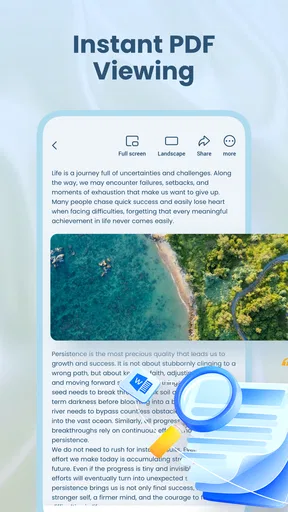
The first thing I want from a PDF reader is a quick path from opening the app to seeing the document. A tool built around PDFs should not make me think about file formats before I can read a page. In that respect, the appeal of this app is its direct purpose: PDF viewing is placed at the center instead of being treated as a minor feature inside a broader file manager.
I would use it for documents such as instructions, application forms, school material, travel confirmations, or a menu saved to my phone. These are situations where I am usually reading rather than editing every line. A dedicated reader can feel more comfortable than opening the same file through a browser tab, particularly when I want the document to remain separate from my general web activity.
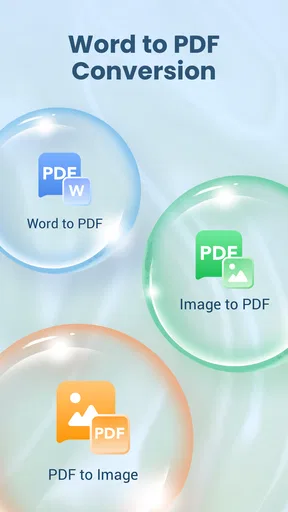
The store summary describes it as a PDF viewing and document conversion tool, while the short description is simply “All PDF.” I read that as a promise of convenience rather than an indication that it replaces every document application. My expectations are therefore best kept practical: open PDFs, inspect them, and use the conversion side when a file needs to move into another workflow.
What speed probably means here
For this type of app, perceived speed is less about dramatic animation and more about how quickly I can reach a file, move through pages, and return to the task after switching applications. A lightweight PDF utility has an advantage when I only need to consult a document for a minute. I do not want to launch a large office environment just to check one page.
At the same time, PDF performance depends heavily on the document itself. A short text document should be easier to handle than a file packed with large images, scanned pages, or complex layouts. I would not judge the app only by how it behaves with a small everyday file. Anyone planning to work with image-heavy manuals or long scans should test those documents early, before relying on the app for an important deadline.
My useful tip is to separate reading from conversion in your expectations. Reading a file and changing its format are different workloads. If the document opens comfortably but conversion takes longer, that does not automatically make the reader unreliable. Conversion has to process the document rather than merely display it, so I would give that operation more time and avoid repeatedly tapping the command when the file is substantial.
Where heavy use can change the experience
The app makes the most sense for occasional or moderate PDF work. A realistic example would be receiving a rental form in a messaging app, opening it to check the required sections, and then converting it so the contents can be used elsewhere. In that situation, keeping the reader and conversion utility together can save a few steps and reduce the need to search for another application.
A different scenario is a student reviewing several course documents on a phone while commuting. The reader can be useful because it keeps the task focused on the files themselves. However, I would be more cautious if the workload involved dozens of very large documents in one sitting. Long sessions, repeated conversions, and frequent switching between storage locations are the moments when any mobile document tool becomes less comfortable than a computer.
One practical habit helps: process one conversion at a time and check the result immediately. Do not assume that a converted file is ready simply because the operation appears to have finished. Open the output, inspect the first and last pages, and confirm that the text or layout still serves your purpose. This is especially important for forms and documents where a missing line or shifted element could matter.
Another trade-off is phone storage. Keeping original PDFs beside converted copies is sensible for safety, but it can quietly create duplicates. If I use the app regularly, I would name files clearly and remove temporary copies after confirming the result. That is not a special feature of this application; it is a sensible workflow for any conversion tool, and it prevents confusion when several versions of the same document exist.
Reliability and recovery when something goes wrong
Reliability for a PDF app is not only about opening files. It also includes what happens when a document is damaged, unusually complex, or interrupted during conversion. I would treat the original file as the source of truth and keep it untouched until the converted copy has been checked. That simple approach gives me a recovery path if the output does not look right.
When a document fails to open or behaves strangely, I would first try the same file again from its local storage rather than repeatedly opening it from a temporary attachment. If the problem remains, I would compare it with another PDF. This helps distinguish an issue with the particular document from an issue with the app or the device. It is a more useful test than assuming every failure has the same cause.
I also would not use a conversion result as the only copy of an important contract, application, or official record. The safer routine is to preserve the original, create the new version, and then inspect it before sharing. That matters because conversion can alter layout, selectable text, or the way images are positioned, even when the document looks acceptable at a glance.
The current version is 1.0.3, so I see the product as relatively early in its development rather than as a mature, all-purpose document platform. That does not make it unusable, but it does affect how much trust I would place in it for a demanding professional workflow. For casual reading and occasional document handling, I can accept some experimentation. For business-critical archiving, I would keep a second method available.
Device limits matter more than the label suggests
All PDF: Reader, Editor supports Android 8.0 and later, which gives it a broad reach across Android phones and tablets. Still, operating-system compatibility does not guarantee the same experience on every device. Available memory, free storage, screen size, and the nature of the PDF can all influence how comfortable the app feels.
On a smaller phone, reading a document may require more zooming and panning than it would on a tablet. That is not necessarily a weakness in the application, but it changes the best use case. I would choose the phone for checking a page or finding a detail, while a larger screen would be better for sustained reading, comparing sections, or reviewing a converted document carefully.
Older compatible devices deserve realistic expectations. A phone that handles ordinary PDFs well may struggle more with scanned books or pages full of photographs. If storage is nearly full, conversion can also become inconvenient because the original and output need room to coexist. Before starting a large task, I would make space and close unrelated apps, not because the application promises a particular performance level, but because those steps reduce avoidable pressure on the device.
Resource demands are therefore best judged by the job rather than by the app’s name. Opening a modest document is a light request. Converting several large files is a heavier one. I would avoid treating the tool as a background batch processor unless I had already tested the exact documents and confirmed that the phone remains responsive.
How it compares with familiar alternatives
The usual alternative is a browser-based PDF viewer. A browser is convenient when a file arrives through a web page, but it can be less tidy when I want to manage local documents or move from reading into conversion. A dedicated tool has a clearer role, especially for someone who handles PDFs often enough to want them separated from browsing.
Another alternative is a broad office suite. Those apps may be better when I need spreadsheets, presentations, advanced text editing, collaboration, or extensive formatting. I would choose one of them for a complete work project. I would choose this app instead when the task begins and ends with PDF viewing or a straightforward document conversion, because the narrower purpose may feel less distracting.
Cloud storage apps can also open PDFs, but their strength is file synchronization rather than focused document handling. If I need a document available across several devices, cloud storage remains the better center of the workflow. If I simply want to inspect a file on an Android device and work with its format, a dedicated PDF utility is more direct.
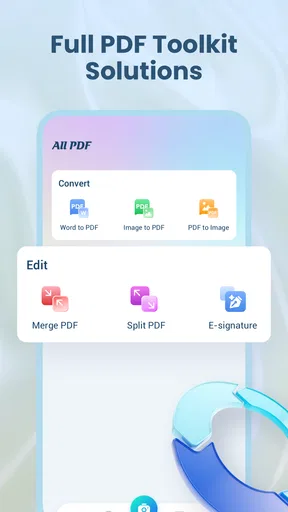
The important distinction is that All PDF is not automatically the best choice for every document task. Someone who annotates heavily, signs documents, edits page structure, or needs advanced recognition tools should compare it carefully with a more specialized application. The presence of “Editor” in the name may attract users expecting a complete professional editor; I would verify that the actual tools match the specific editing job before making it my only document application.
Who will get the most from it
I think this app suits people who want a free PDF-focused utility on Android and prefer a simple tool over a large productivity package. It may be useful for students, renters, travelers, families handling digital paperwork, and anyone who receives PDFs regularly but does not want to maintain several separate apps for basic viewing and conversion.
It is also a reasonable option for a secondary device. For example, I could keep it available on an older phone used for reading manuals or checking saved documents. The Android 8.0 minimum makes that kind of use possible on devices that are not running the newest software, although the actual experience will still depend on the phone’s hardware and the files involved.
I would skip it as my primary solution if my work depends on precise document preservation, repeated bulk conversion, advanced editing, or a well-established professional workflow. In those cases, a desktop application or a more specialized mobile editor is likely to offer stronger control. I would also skip it if I only open a PDF once every few months and already have a trusted reader built into my normal file workflow.
What the public response suggests
The app has passed one hundred thousand installs, which tells me it has reached a meaningful Android audience. Its average rating is three and a half, based on roughly six hundred ratings, with twenty-one written reviews. I would read that as a mixed but useful signal: enough people have tried it to make the app worth considering, while the rating encourages me to test it with my own files instead of assuming it will suit every device and document.
Those figures do not replace personal testing. PDF behavior can vary sharply between a plain text file and a scan with complex graphics. Before using the app for an important submission, I would open a representative sample, perform the conversion I actually need, and inspect the output on the same device I plan to use later.
My performance verdict
My view of All PDF: Reader, Editor is that it is most convincing as a focused, free Android utility for everyday PDF access and occasional conversion. Its value comes from keeping those tasks together without asking me to adopt a full office environment. The app is easier to recommend when the job is modest, the document is ordinary, and convenience matters more than advanced control.
I would approach heavy files, long conversion sessions, and important records with a recovery plan: keep the original, check every output, and use another application when the document is business-critical or unusually complex. That is the difference between using it casually and depending on it professionally.
For readers who want a straightforward PDF tool on a compatible Android device, the free price and Everyone age rating make it easy to try. My final recommendation is conditional but positive: install it if your routine involves reading PDFs and converting documents now and then, but keep your expectations centered on practical utility rather than a complete replacement for desktop publishing or advanced mobile editing.
Verdict
Strengths of All PDF: Reader, Editor
- Opens PDFs quickly, even when switching between several documents.
- Supports dark mode for more comfortable reading in low-light environments.
- Search results make it easy to locate words or phrases in long files.
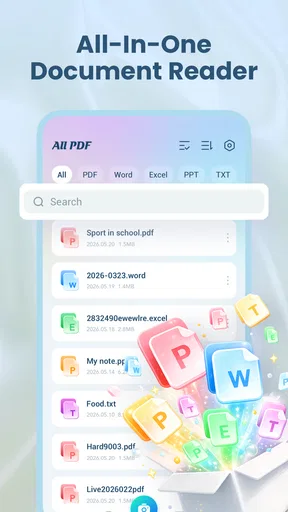
- Recent documents are easy to access from the main screen.
- Useful sharing options let you send PDFs to other apps quickly.
Limitations of All PDF: Reader, Editor
- Some editing and annotation tools may require a paid upgrade.
- Large or image-heavy PDFs can use considerable device storage.
- Advanced document management options feel limited for power users.
- Text selection may be inconsistent in scanned or complex PDFs.
- The app may display promotional content during regular use.
Similar Picks in This Category
View All
Google LLC4.0

Gboard - the Google Keyboard
Google LLC4.5

Google Play services
Google LLC4.3

Google Play Store
Google LLC4.9

Files by Google
Google LLC4.5

SHAREit: Transfer, Share Files
Smart Media4U Technology Pte.Ltd.4.3
Frequently Asked Questions
What is All PDF: Reader, Editor, and what can I use it for?
All PDF: Reader, Editor is a mobile application designed for opening, reading, organizing, and working with PDF documents on Android or iOS devices. It can be useful for viewing study materials, manuals, invoices, forms, and work files without needing a desktop computer. Depending on the version and device, available tools may include search, zoom, page navigation, annotations, signing, sharing, and basic document management.
Can All PDF: Reader, Editor edit existing PDF documents?
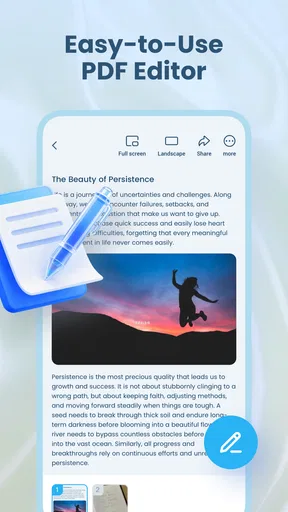
The app is primarily intended for reading and managing PDF files, but it may also provide selected editing features. These can include adding text, highlighting content, drawing, inserting signatures, filling forms, or making annotations rather than completely rewriting the original document. Users who need advanced layout editing, page reconstruction, or professional document conversion should check the current feature list and limitations before downloading.
Does All PDF: Reader, Editor work offline?
Many basic PDF functions, such as opening files already stored on your phone, changing pages, zooming, and reading saved documents, can generally be used without an internet connection. However, features involving cloud storage, online file conversion, advertisements, synchronization, sharing services, or account access may require connectivity. It is advisable to download important documents in advance if you expect to use the app while traveling or offline.
Is All PDF: Reader, Editor free to download and use?
The application may be available as a free download, but some features can depend on the app’s pricing model. Free users may encounter advertisements, usage restrictions, or locked tools, while premium options could remove ads or unlock editing, conversion, signing, and advanced document-management functions. Before installing, review the store listing for subscriptions, in-app purchases, trial terms, and renewal conditions.
Is All PDF: Reader, Editor safe for private and confidential documents?
PDF files can contain sensitive information, including identification details, contracts, financial records, or school and work documents. Before using All PDF: Reader, Editor for confidential files, review its privacy policy, requested permissions, and whether documents are processed locally or uploaded to online services. Avoid granting unnecessary access, keep the application updated, and use device security features when storing or sharing important files.
